WordPress Portfolio Theme
Sorell Documentation
Thank you for choosing Sorell, a creative portfolio theme with twelve demos. This guide explains how to install the theme, import a demo and edit every part of the site with standard WordPress tools.
01
Getting Started
Requirements
- WordPress 6.5 or later.
- PHP 7.4 or later.
- For demo import: a PHP memory limit of 128 MB or more and a maximum execution time of 60 seconds or more are recommended.
Package contents
| File / folder | Description |
|---|---|
sorell.zip | The theme. Install it from Appearance > Themes. |
sorell-core.zip | The Sorell Core plugin: Projects, Service pages and the demo content files. |
documentation/ | This guide. |
licensing/ | License and credits for the theme, plugin and bundled resources. |
readme.txt | Short technical readme. |
Upload sorell.zip to WordPress, not the whole download package. Uploading the package itself causes the error “The package could not be installed. The theme is missing the style.css stylesheet.”
Quick start
- Install and activate the theme (Installation).
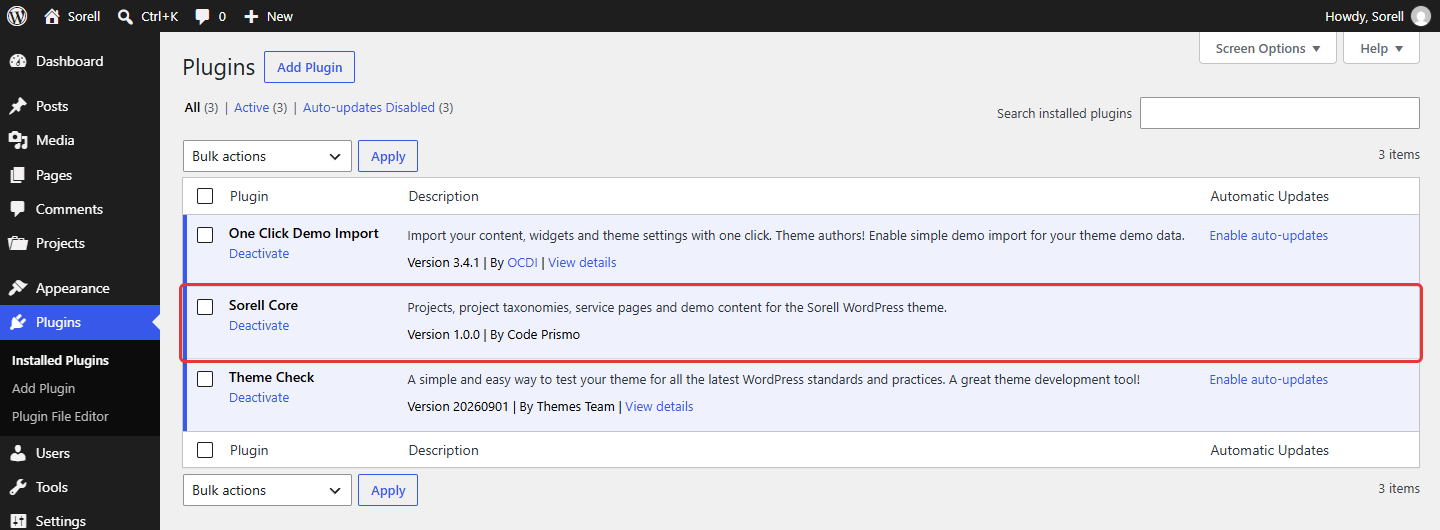
- Install and activate Sorell Core (Sorell Core).
- Install One Click Demo Import and import a demo (Demo Import).
- Replace texts and images with your own work.
02
Installation
Installing the theme
- Open the upload form Go to Appearance > Themes, click Add Theme and then Upload Theme (1).
- Upload the theme Click Choose File, select
sorell.zip(2) and click Install Now (3). When the upload finishes, click Activate.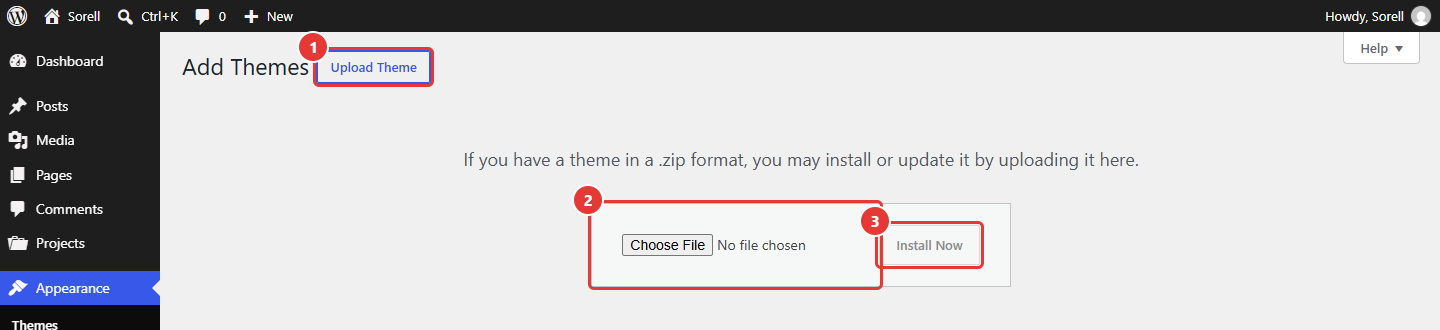
Appearance > Themes > Add Theme > Upload Theme
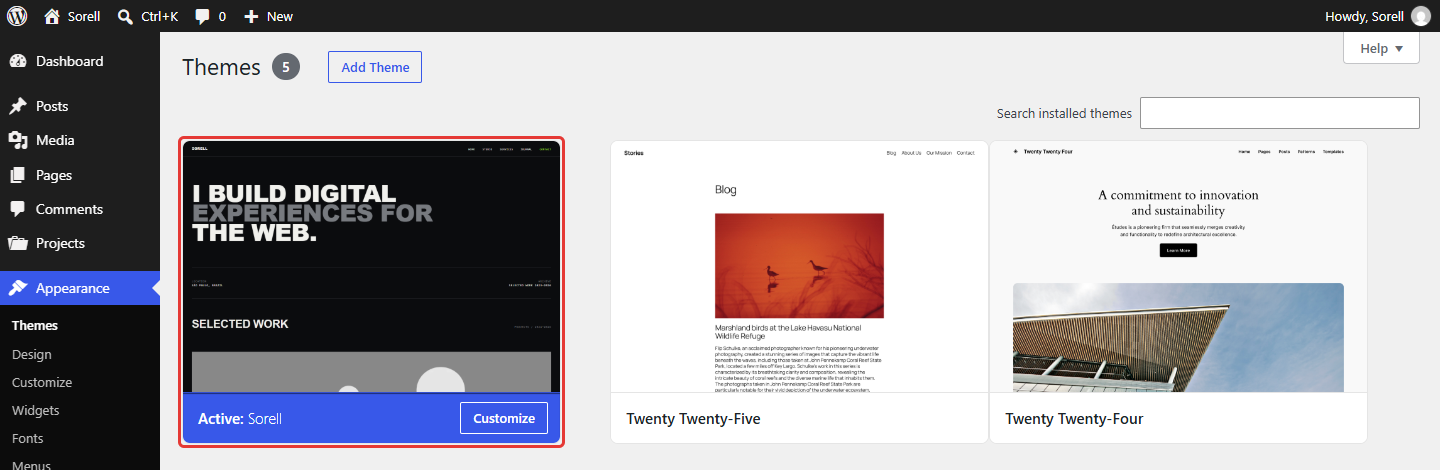
Expected result: Appearance > Themes shows Sorell as the active theme.
Alternatively, unzip sorell.zip and upload the sorell folder to wp-content/themes/ by FTP, then activate it.
Recommended plugins
One Click Demo Import (free, WordPress.org) imports the demo content. While it is missing, Sorell shows a notice and the Appearance > Install Plugins screen to install it. You can also install it directly:
- Search for the plugin Go to Plugins > Add Plugin and type
One Click Demo Importin Search Plugins (1). - Install and activate In the One Click Demo Import card (2), click Install Now and then Activate.
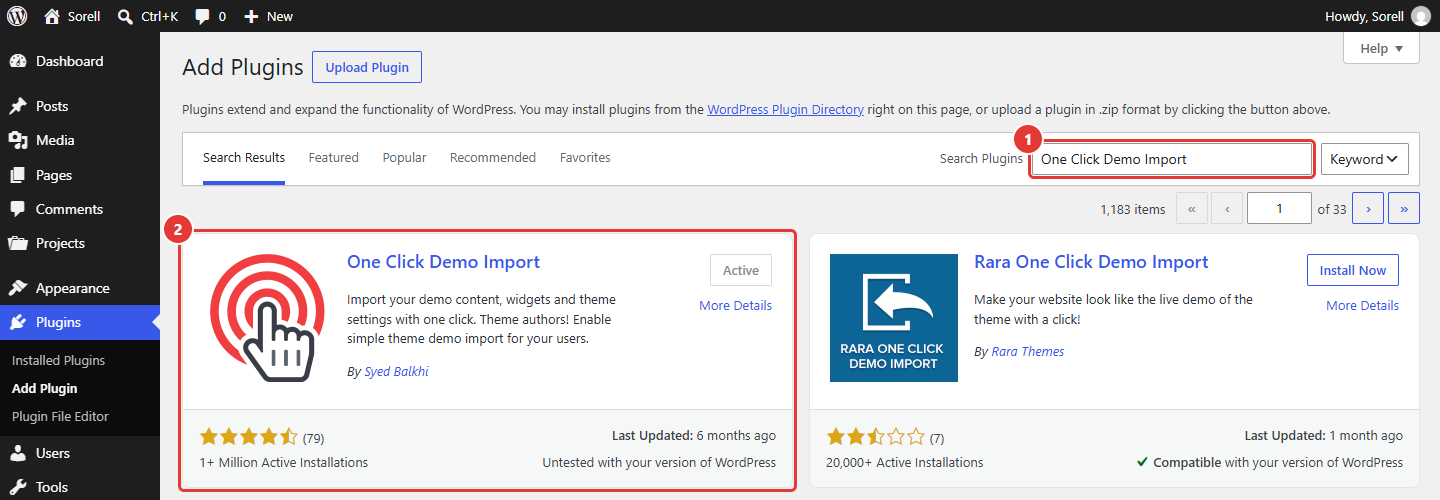
Plugins > Add Plugin, searching for One Click Demo Import (already active on this site)
The plugin is only needed while importing and can be deactivated afterwards.
03
Sorell Core
Sorell Core keeps your portfolio content independent from the theme, so your Projects stay in place if you change themes later. It adds:
- the Projects post type, with Project Categories and the internal Project Groups taxonomy;
- the Service Page option for pages and the Pages > Service Pages list;
- the demo content files used by the importer.
The theme works without the plugin, but Projects and demo import are not available until it is active.
- Open the upload form Go to Plugins, click Add Plugin and then Upload Plugin (1).
- Upload the plugin Click Choose File, select
sorell-core.zip(2) and click Install Now (3). When the upload finishes, click Activate Plugin.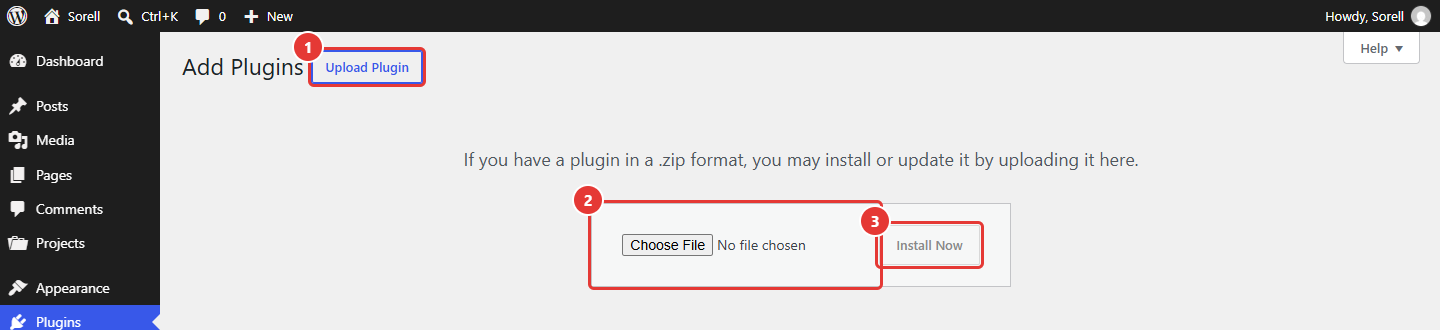
Plugins > Add Plugin > Upload Plugin
Expected result: Sorell Core is listed as active in Plugins, and the Projects menu appears in the dashboard.
04
Demo Import
Importing a demo
Before you start, activate Sorell, Sorell Core and One Click Demo Import.
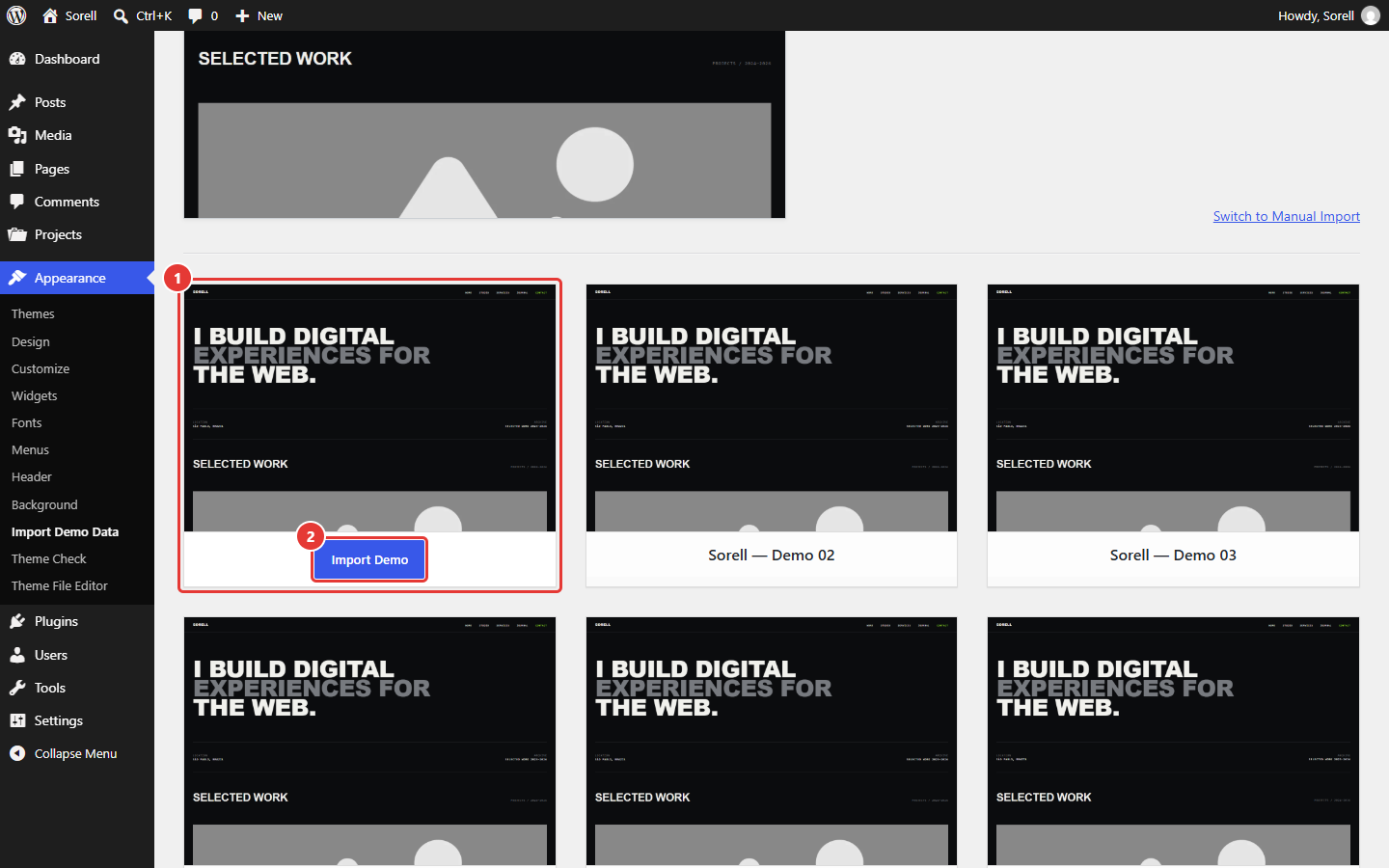
- Open the importer Go to Appearance > Import Demo Data.
- Import a demo Scroll to the list of demos, point at the demo you want (1) and click Import Demo (2). Follow the importer's next screen to start the import and wait until it finishes.
Appearance > Import Demo Data
Expected result: the demo Home page is set as your homepage. Visit the site to see the demo.
The import creates the demo Home page, pages, posts, Projects and menus, sets the static front page and the posts page, assigns the menus to their locations and fills the Header and Footer texts in the Customizer. The Projects of Demos 02–12 and the Demo 09 posts get a featured image from the placeholder images bundled with the theme; Demo 01 lists its Projects without images.
What the import does not change
- Pages, posts and Projects that already exist on your site are not modified or deleted.
- Importing the same demo twice does not duplicate its content.
- The site title and tagline are not changed. The header shows your own site title (Settings > General).
One Click Demo Import adds a small log file to the Media Library after each import. You can delete it.
Switching demos
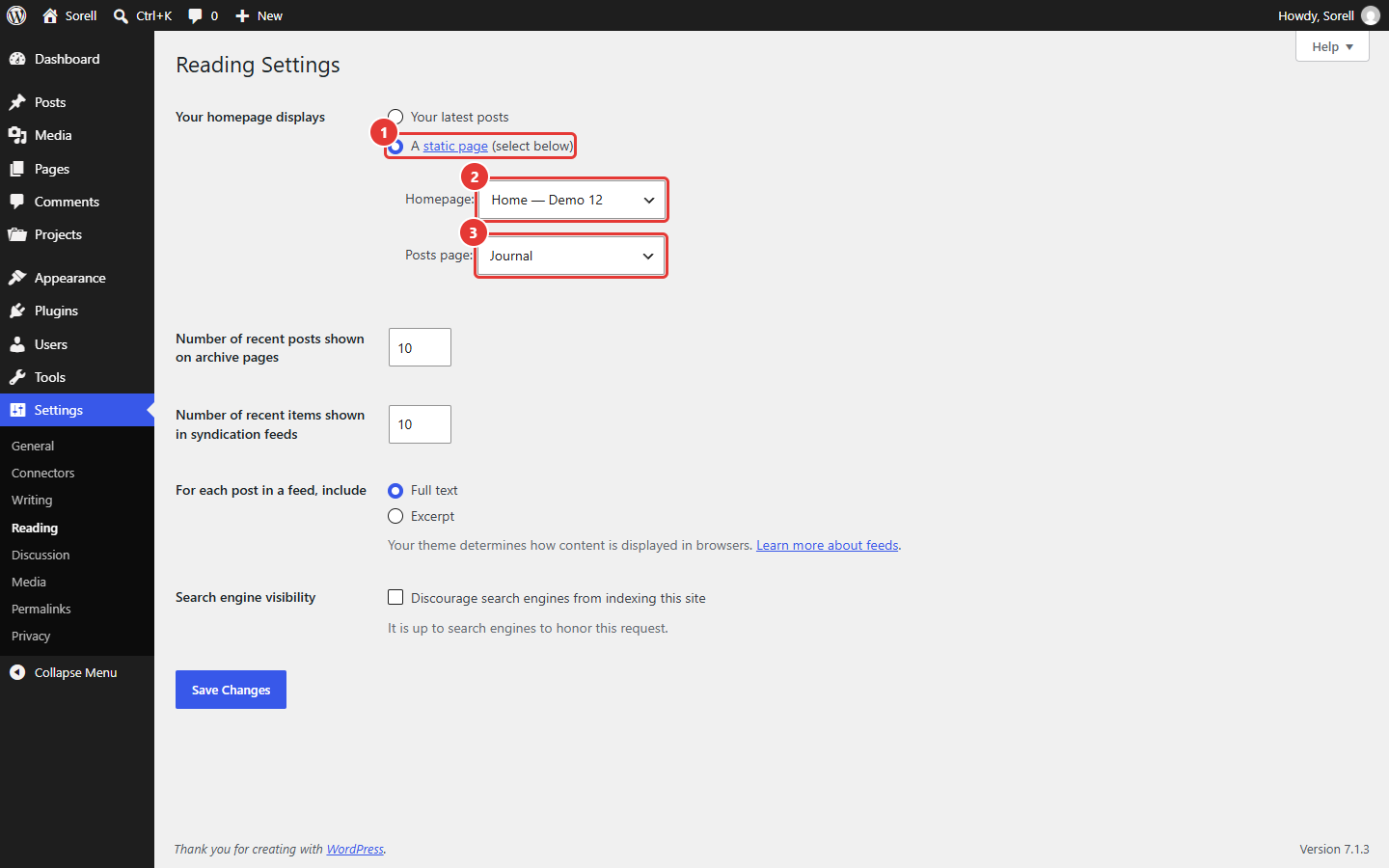
The active demo is the one whose Home page is set as the front page. To switch, either import another demo (its Home page becomes the front page), or go to Settings > Reading and choose another imported Home page as the homepage:
- Choose a static homepage In Settings > Reading, select A static page (1).
- Assign the pages Choose the demo Home page in Homepage (2) and the Journal page in Posts page (3), then click Save Changes at the bottom of the screen.
Settings > Reading
Each demo has its own menus, named “Sorell Demo NN Primary”, “Footer” and “Social”; assign them in Appearance > Menus > Manage Locations when switching through Settings > Reading.
Pages that several demos share, such as About, Contact and Journal, are created once per import. When a second demo is imported, WordPress names its copies about-2, contact-2 and so on, and the menu links of the new demo point to the first pages. Delete the pages you no longer need and check the links in Appearance > Menus.
Home page
Each demo Home is a normal page built with blocks. Edit it in Pages with the block editor: change texts, images and links directly. Sections such as the latest Projects or the latest posts are Query Loop and Latest Posts blocks and update automatically.
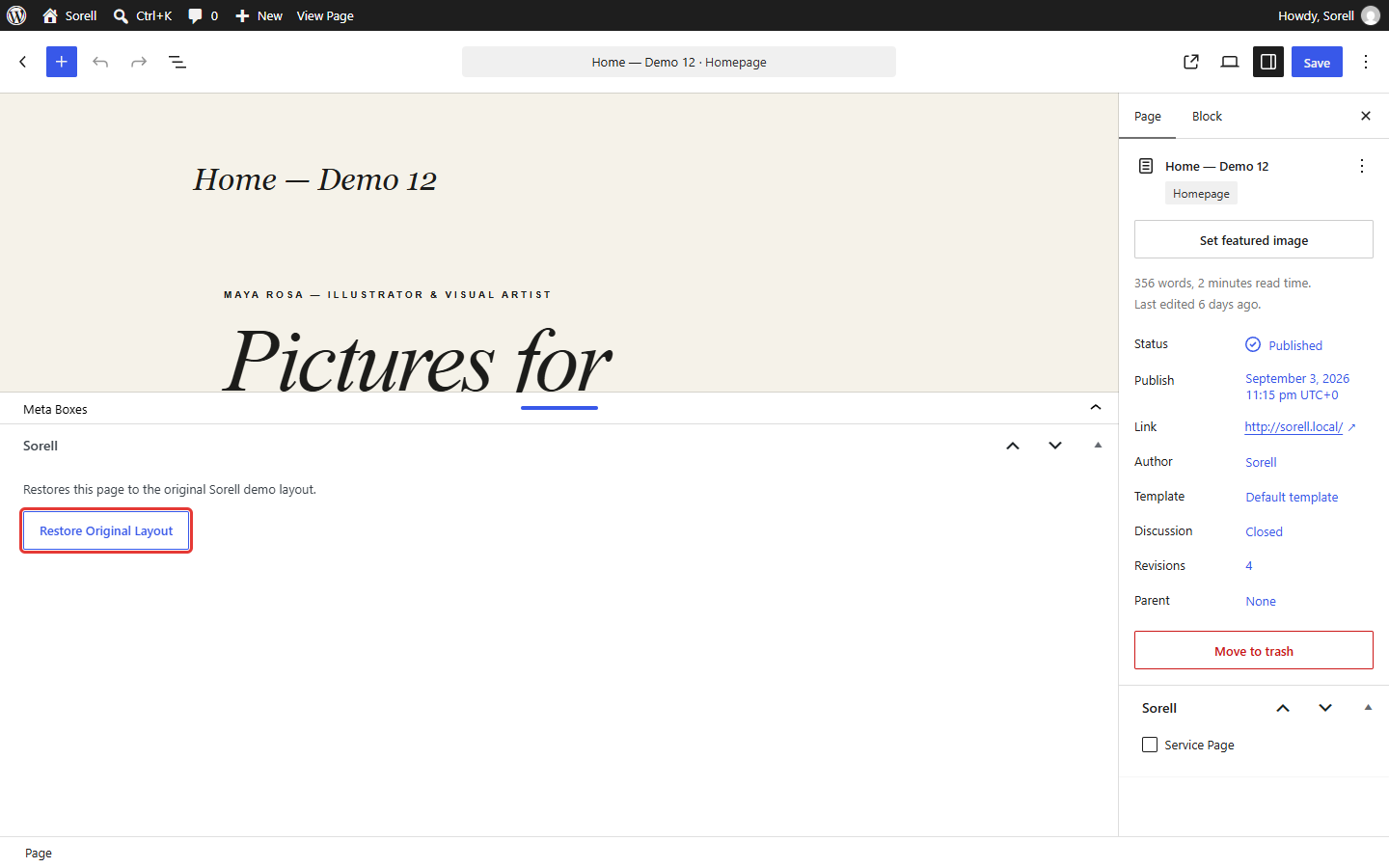
Restore Original Layout. Demo Home pages show a Sorell box below the content with a Restore Original Layout button. It replaces the page content with the original demo layout. A revision of your current content is saved first, so you can go back with Revisions.
- Open the meta boxes Edit the demo Home page and open the Meta Boxes panel at the bottom of the editor (drag it up or click its arrow).
- Restore the layout In the Sorell box, click Restore Original Layout.
Pages > edit the demo Home > Meta Boxes > Sorell
Block patterns. Every demo Home layout is also available as a block pattern in the Sorell category of the block inserter (Patterns tab), so you can insert it into any page.
Journal (blog)
The import creates a page named Journal and sets it as the posts page in Settings > Reading. Write posts in Posts > Add Post. Featured images are shown on the Journal page and on single posts. The Blog Sidebar widget area (Appearance > Widgets) appears on single posts when it contains widgets.
05
Menus
| Location | Used for |
|---|---|
| Primary Menu | Main navigation in the header. Sub-menus open on hover and keyboard focus on desktop and are listed below their parent in the mobile menu. |
| Footer Menu | Links in the footer of the demos that show a footer menu. |
| Social Menu | Social and portfolio links in the footer. Add them as Custom Links. |
Manage menus in Appearance > Menus. Links that point to a section of the Home page use anchors, for example /#work or /#contact.
Assigning menus to locations
- Open Manage Locations Go to Appearance > Menus and open the Manage Locations tab (1).
- Choose the menus Pick a menu for Primary Menu, Footer Menu and Social Menu (2) and click Save Changes (3).
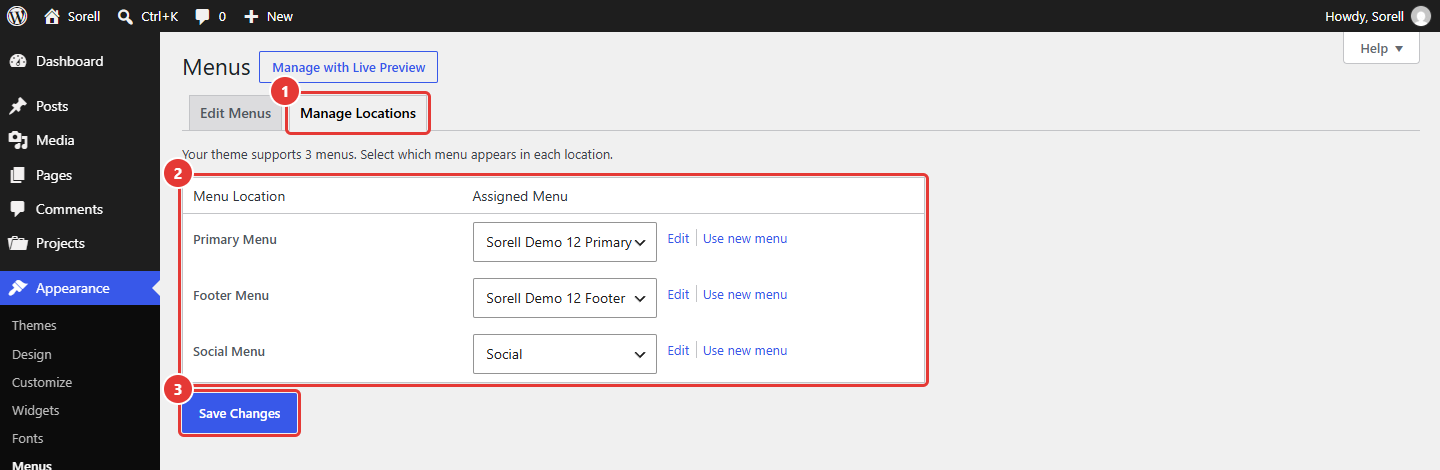
Appearance > Menus > Manage Locations
Editing a menu
- Select the menu In the Edit Menus tab, choose the menu in Select a menu to edit and click Select.
- Change the items Add pages or Custom Links from the left column, drag the items to reorder them, and click the arrow of an item to edit its label or URL (1). Click Save Menu (2).
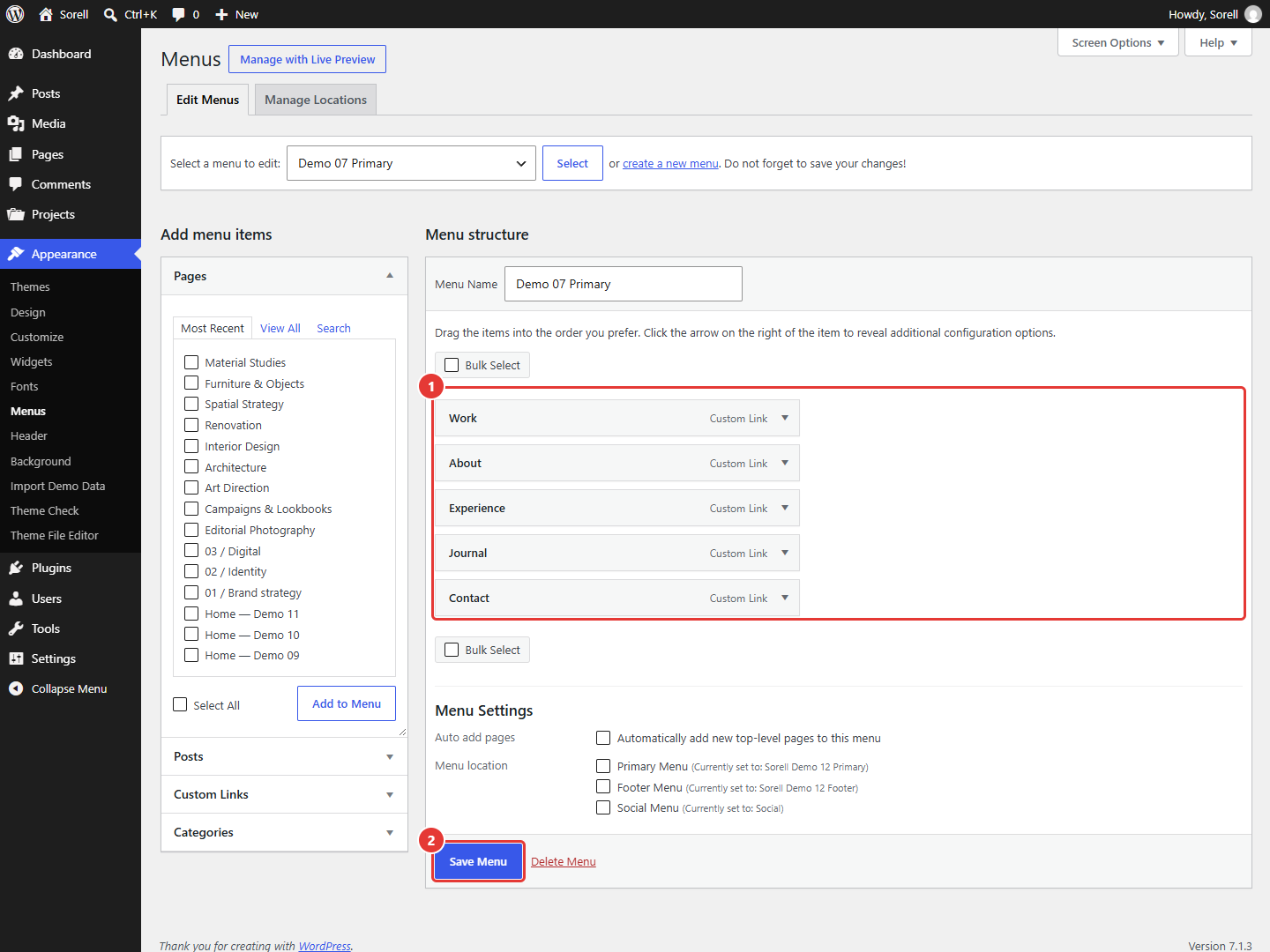
Appearance > Menus > Edit Menus
06
Customizer
Go to Appearance > Customize and open Sorell Theme Options. Changes appear in the preview; click Publish to save them.
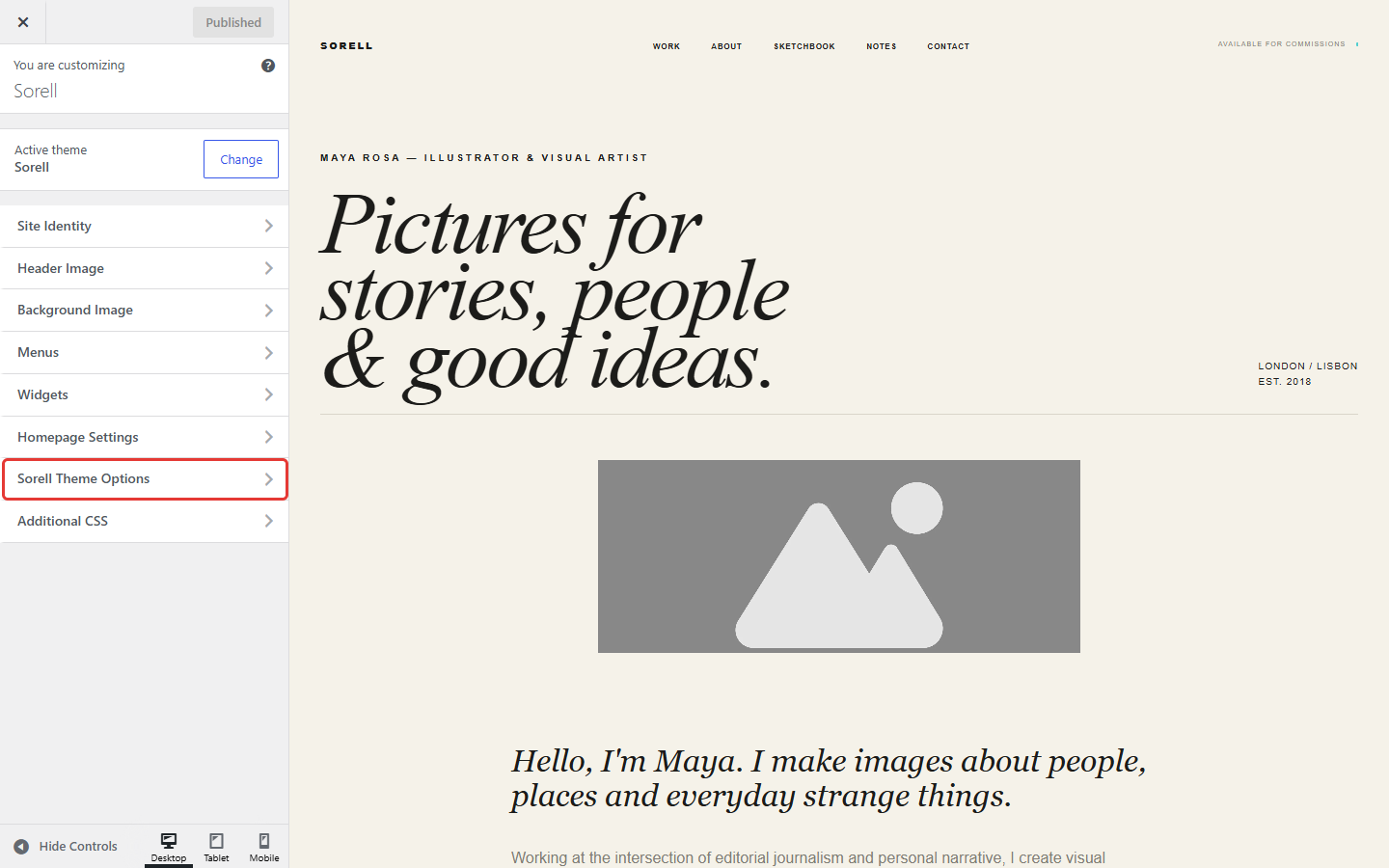
| Section | Options |
|---|---|
| Colors | Background, surface, text, muted, accent and dark colors for the active demo. Leave a color empty to keep the demo default. |
| Header | Mobile Header Link (label and URL), shown next to the menu button on small screens; Header Status Text, a short note some demos show in the navigation. |
| Footer | Footer Text, Footer Note, Footer Meta Line, Location, Contact Email, Footer Link (label and URL) and Footer Copyright Text. Use {year} for the current year. Empty fields are not displayed. |
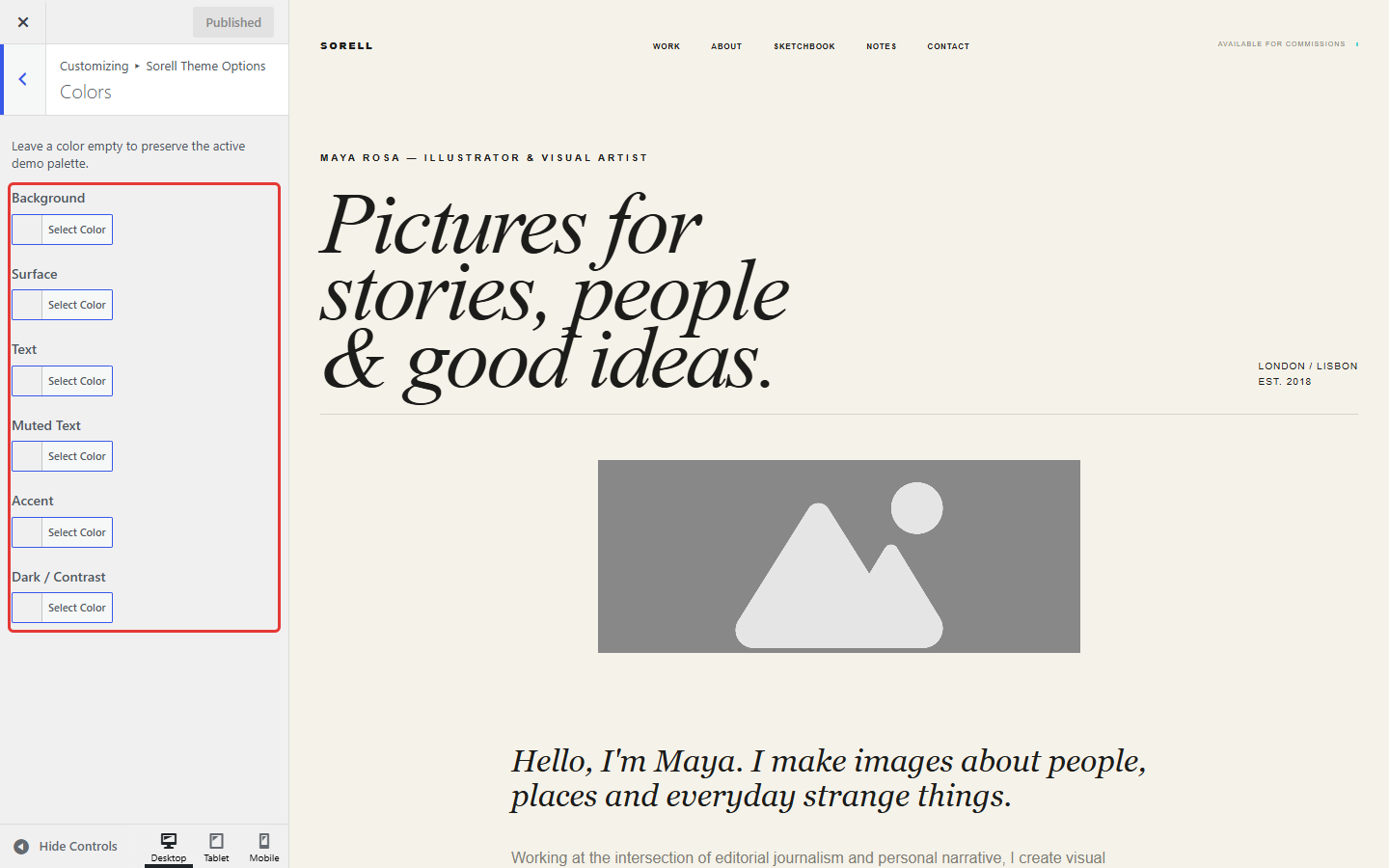
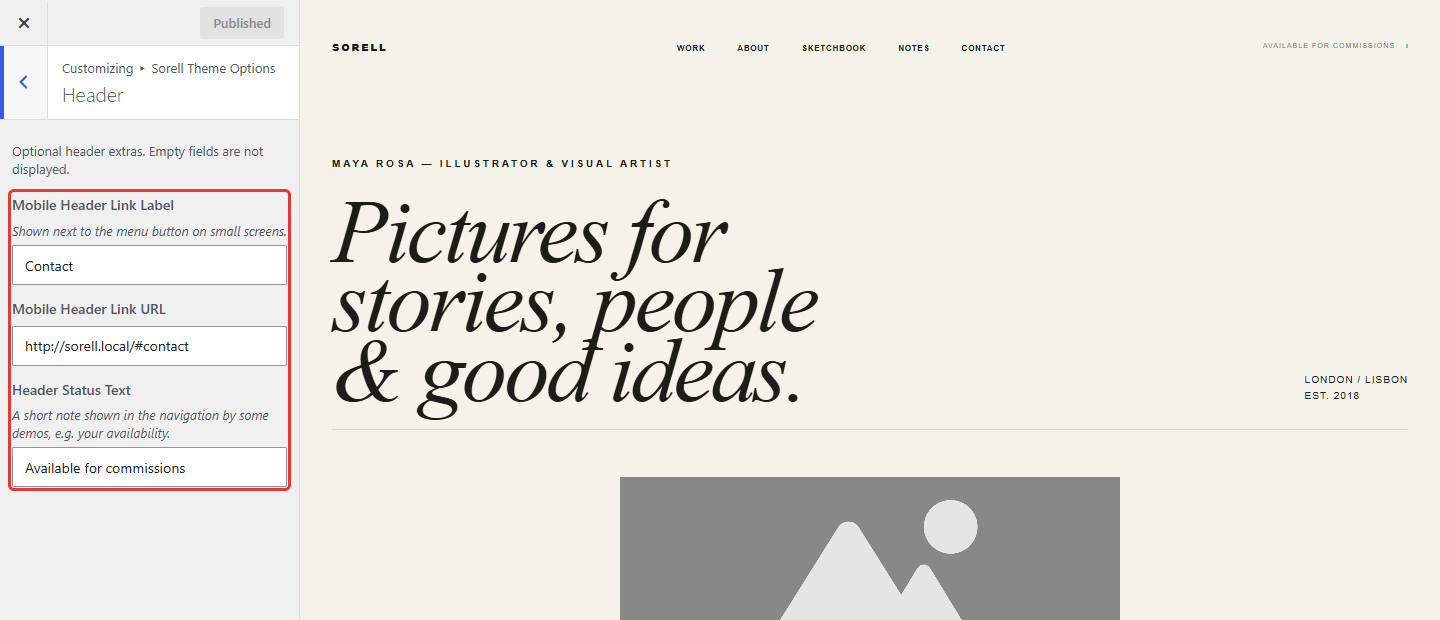
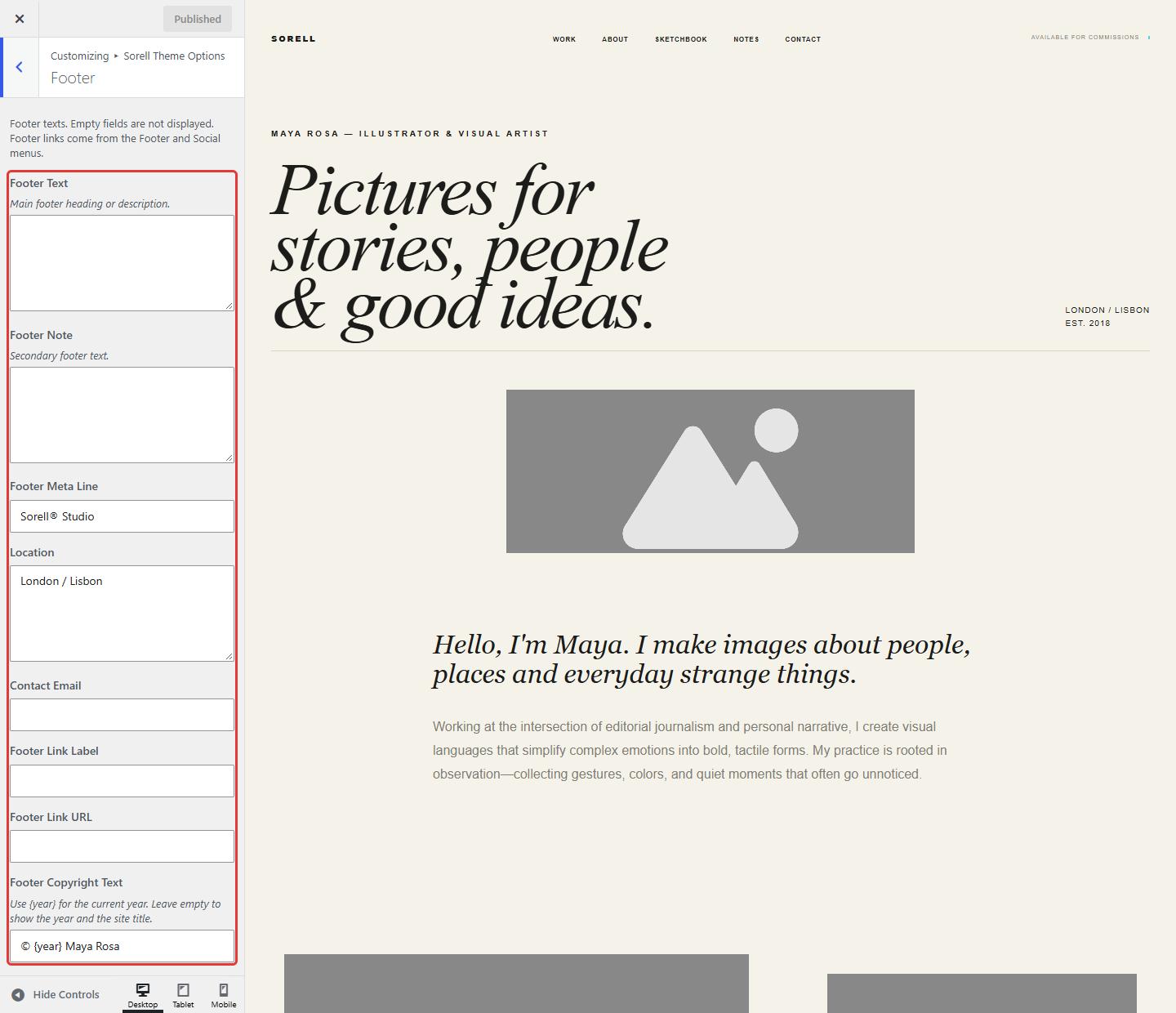
The site logo, title and tagline are in Site Identity. Some demos show the tagline next to the site title.
Header and background images
Appearance > Customize > Header Image adds an optional full-width image right below the header (recommended 1920 × 640 px; other sizes are accepted). Background Image sets an image behind the page. Both are empty by default, so the demos keep their own design until you choose an image. Background colors are set in Sorell Theme Options > Colors.
07
Projects
Add portfolio items in Projects > Add New Project (requires Sorell Core). Set a featured image: it is used on the Home page, the Projects archive and the single Project page. Use Project Categories to classify Projects; some demos show the category on the Home page. The Projects archive is available at /projects/.
The Demo 02 Home shows the Projects of the Demo 02 group. To show a new Project there, assign it to that group in the Project Groups box.
Creating a Project
- Add a Project Click Projects in the dashboard menu (1) and then Add New Project (2).
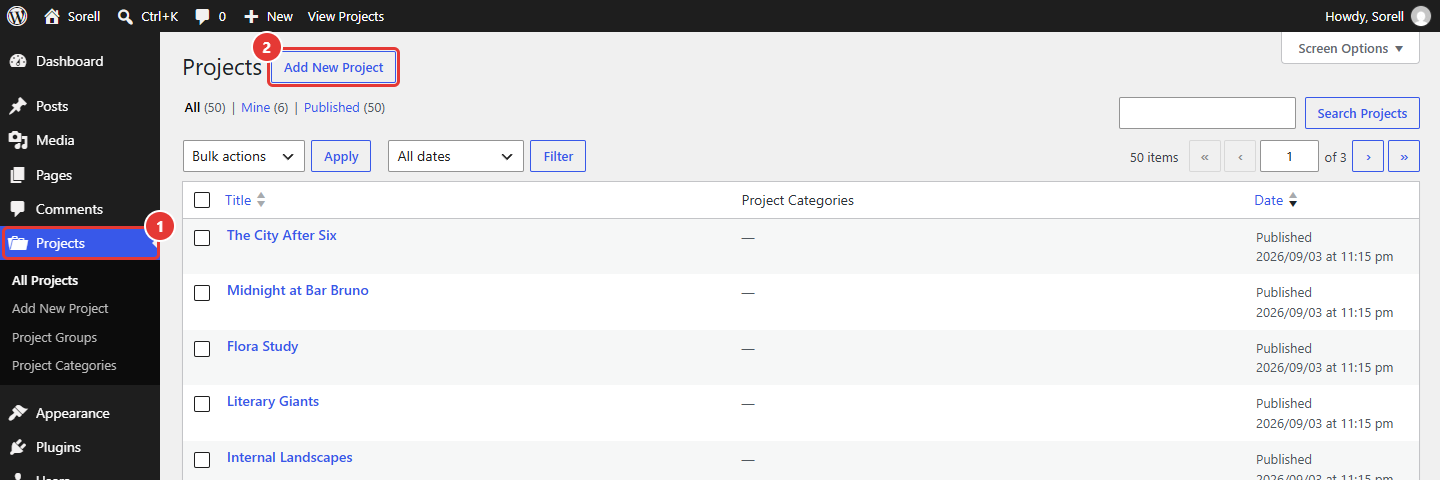
Projects - Fill in the Project Type the title (1) and add the content with blocks. In the sidebar, set the Featured image (2), add a group in Project Groups if needed (3) and choose the Project Categories (4). Click Publish, or Save when you edit an existing Project.
Creating categories
- Open Project Categories Go to Projects > Project Categories.
- Add a category Fill in the name (1) and click Add New Project Category (2). You can also create categories from the Project editor.
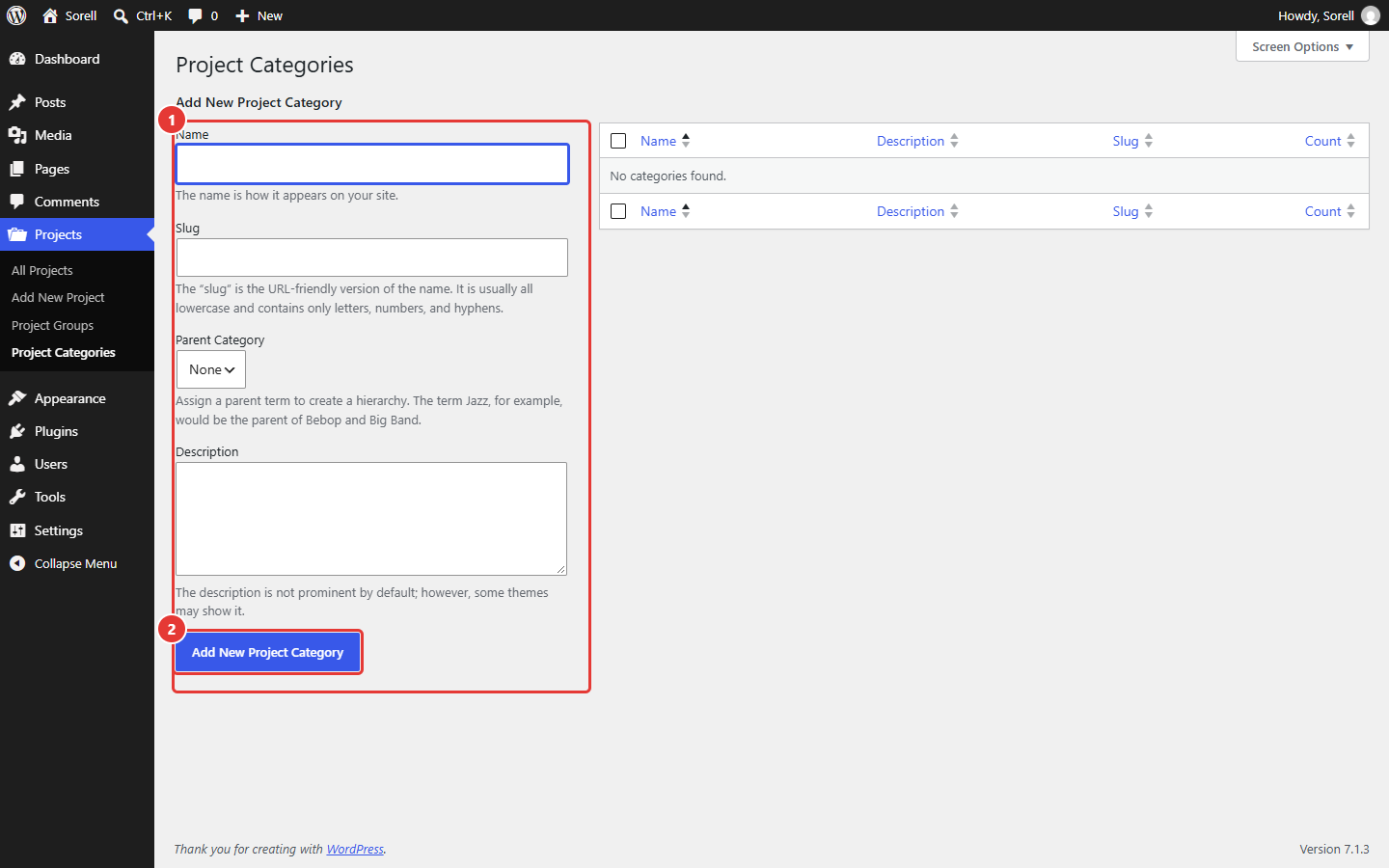
Projects > Project Categories
08
Services
Mark a page as a service with the Service Page checkbox in the Sorell box of the page editor sidebar (requires Sorell Core), then save the page.
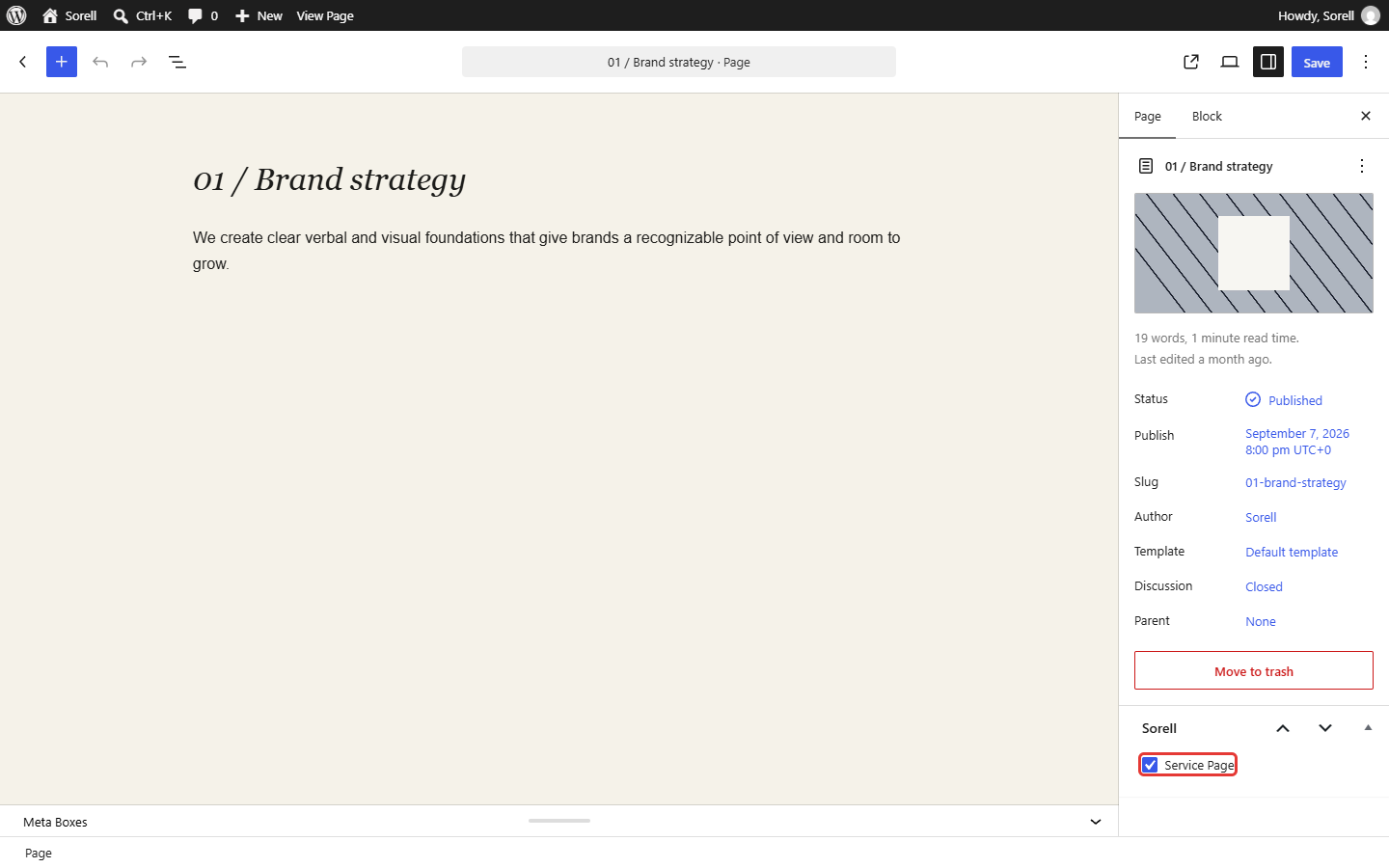
All service pages are listed in Pages > Service Pages. Demo 02 links its services list to these pages and shows their featured images.
09
Gutenberg
Sorell supports the core WordPress blocks, wide and full alignments and the editor styles of the active demo, so the editor shows the same fonts, colors and backgrounds as the front end. Many sections use CSS classes from the demo stylesheet (Advanced > Additional CSS class). Keep these classes when you duplicate or move a section so it keeps its design.
Two extra block styles are available in the block sidebar (Styles): Label for paragraphs (small uppercase text, as used for section labels in the demos) and Framed for images (thin frame with inner spacing).
Images and placeholders
The demos use neutral placeholder images bundled with the theme (assets/images/placeholders) and a placeholder video. Replace them with your own work: select the image block and choose Replace, or change the featured image of a post or Project.
- Select the image Edit the page and click the placeholder image to select its Image block.
- Replace it Click Replace in the block toolbar (1) and choose an image from the Media Library or upload a new one. Save the page.
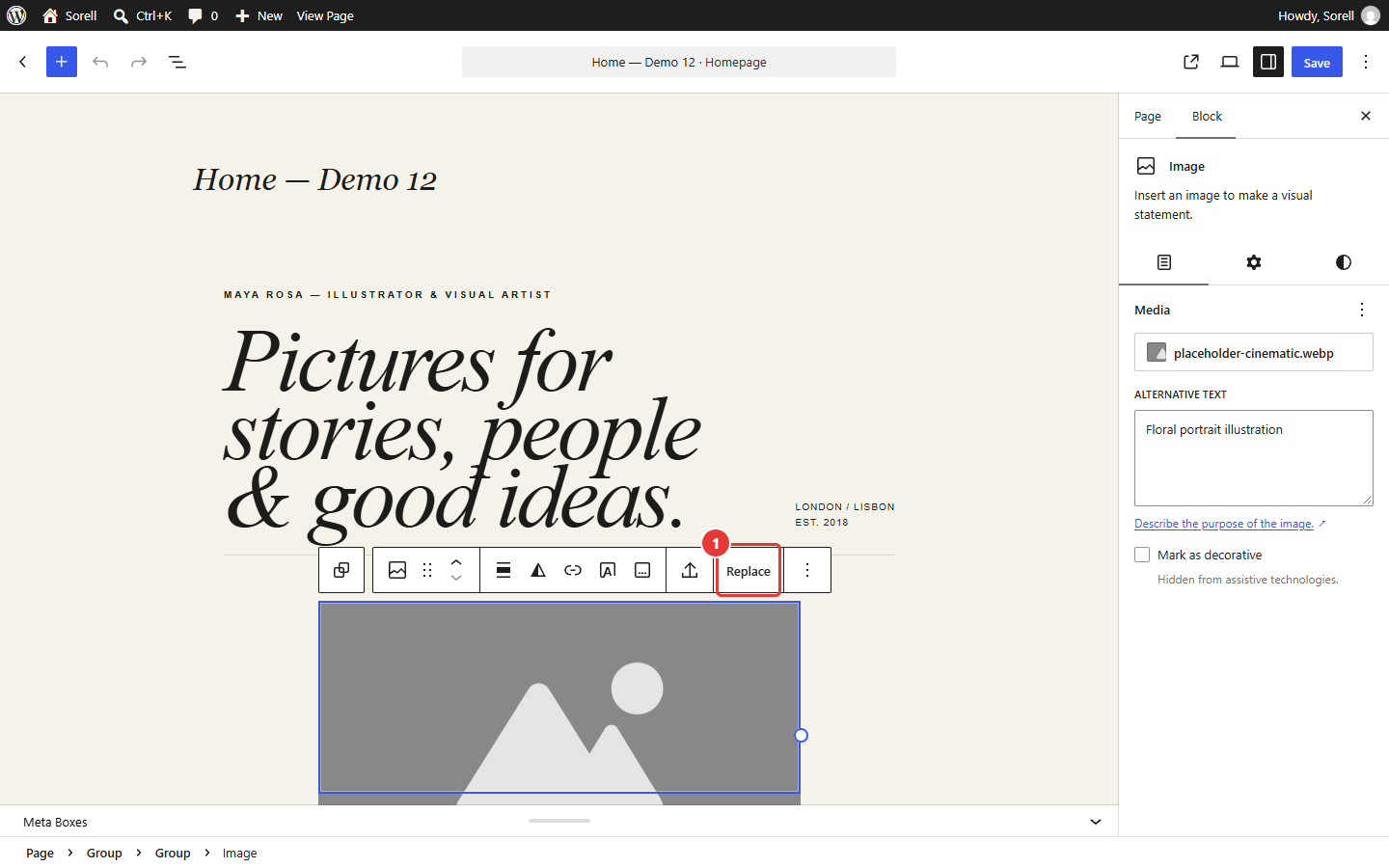
Image block toolbar > Replace
The placeholders show the image proportions used by the demos. Images with similar proportions fit best; the demos crop images where needed.
| Placeholder | Size | Ratio |
|---|---|---|
| Landscape | 1600 × 1067 px | 3:2 |
| Editorial | 1600 × 1200 px | 4:3 |
| Portrait | 1200 × 1800 px | 2:3 |
| Square | 1400 × 1400 px | 1:1 |
| Cinematic | 1920 × 1080 px | 16:9 |
10
Translation
The theme text domain is sorell and the plugin text domain is sorell-core. Translation templates are in sorell/languages/sorell.pot and sorell-core/languages/sorell-core.pot. Use a tool such as Poedit or Loco Translate to create translations.
11
Troubleshooting
“The theme is missing the style.css stylesheet.”
You uploaded the download package. Unzip it and upload sorell.zip.
The demo list is empty in Import Demo Data
Activate Sorell Core: the demo files are part of the plugin.
The import stops or times out
Ask your host to increase the PHP memory limit and maximum execution time, then run the import again. Content that was already imported is not duplicated.
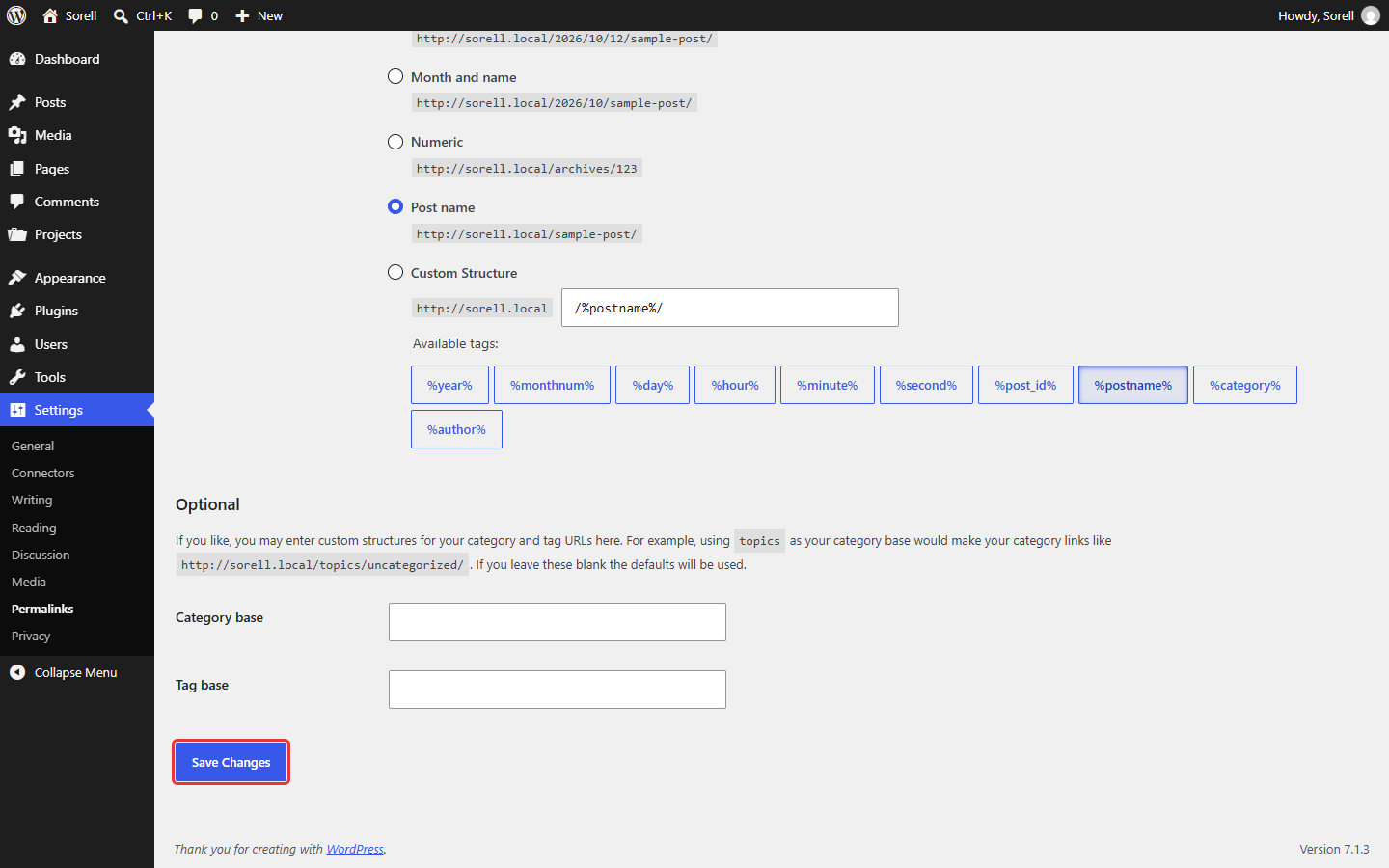
Projects pages return “Page not found”
Go to Settings > Permalinks and click Save Changes without changing anything. This refreshes the Project addresses.
The Home page does not look like the demo
Check Settings > Reading: the demo Home page must be selected as the homepage. If the content was changed, use Restore Original Layout.
The header or footer text is missing
Fill the fields in Appearance > Customize > Sorell Theme Options and assign menus to the Footer and Social locations.
12
Updates
- Back up your site.
- Download the latest package and unzip it.
- Go to Appearance > Themes > Add Theme > Upload Theme, choose the new
sorell.zipand confirm Replace current with uploaded. - Update Sorell Core the same way from Plugins > Add Plugin > Upload Plugin.
Your content, menus and Customizer settings are kept. Do not edit theme files directly: changes are lost when you update. Use a child theme or Appearance > Customize > Additional CSS for customizations.
13
Support
Before opening a request, check Troubleshooting. When you contact support, include your WordPress and PHP versions, the active demo and the steps that lead to the problem.
Credits and privacy
See the licensing folder of the download package for the license and credits of the theme, the plugin and the bundled resources.
External resources: when Demo 08 is the active demo, the theme loads the Oswald font from Google Fonts (fonts.googleapis.com), which sends the visitor’s IP address to Google. Mention this in your privacy policy, or host the font locally if your site requires it. No other demo loads external resources.